How to Set Up Your New PS5: Complete Guide for First-Time Buyers Worldwide
Unboxing a new console is exciting, but a few smart choices in the first hour make the difference between a smooth start and a week of annoyances. This PS5 setup guide shows how to set up PS5 step by step, from placing the console and connecting cables to creating your account, adjusting video settings and turning on parental controls. It is written for the PS5 first time setup experience, so no previous console knowledge is assumed, and it works for buyers anywhere in the world.
The steps below match the PlayStation 5 family in general. The exact screens can change with system software updates, and the model you own (such as the PS5 Slim Digital Edition or the Wolverine bundle) may include slightly different parts. Always check the quick start guide in your box.
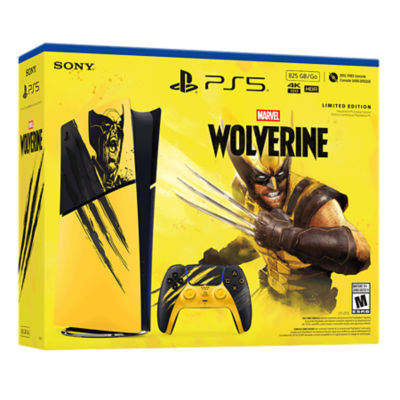
Table of Contents
How to Set Up PS5: Quick Answer
- Choose a well-ventilated spot and attach the stand or feet.
- Connect the HDMI cable to the console and your display.
- Plug in the power cable and switch on.
- Pair the DualSense controller with the USB cable.
- Follow the on-screen setup, connect to the internet and install updates.
- Sign in or create your PlayStation account.
- Adjust display settings, parental controls and storage.
Before You Start: Check the Box and Your Space
Open the box carefully and lay out the contents. A PS5 normally includes the console, a DualSense wireless controller, an HDMI cable, a power cable, a USB cable and the stand or feet. Compare what you find with the product listing, and photograph anything missing or damaged right away so you can contact the seller within the return window. The store’s return policy explains the process.
Pick a location with airflow on all sides. Do not place the console in a closed cabinet, on carpet that blocks vents, or next to a heat source. The listing for our Digital Edition bundle notes that the console comes with two plastic stand feet so you can place it horizontally, so check how your model is meant to stand. Dust is the enemy of cooling, so plan to wipe the area regularly.
Step 1: Attach the Stand
The console needs a stand or feet to stay upright or flat. Follow the instructions for your model, since the Slim uses a different attachment from the original design. Make sure the console is stable and does not wobble. If you intend to use a vertical position, fit the stand properly instead of balancing it against a wall.
Step 2: Connect the HDMI Cable
Plug the supplied HDMI cable into the port on the back of the console and the other end into an HDMI input on your display. For 4K at 120Hz, you need an HDMI 2.1 port on a compatible display, and the port on some TVs is labelled. Our monitor guide explains what to look for. If you have a soundbar or receiver, connect the console to the display first, and let the display handle audio passthrough unless you know your equipment supports otherwise.
Step 3: Power and First Boot
Connect the power cable to the console and a wall outlet or surge-protected strip. If you bought your console from overseas, confirm that the plug fits your socket; some buyers need an adapter. Press the power button. You should see the PlayStation logo, then a prompt to connect a controller.
Step 4: Pair the Controller
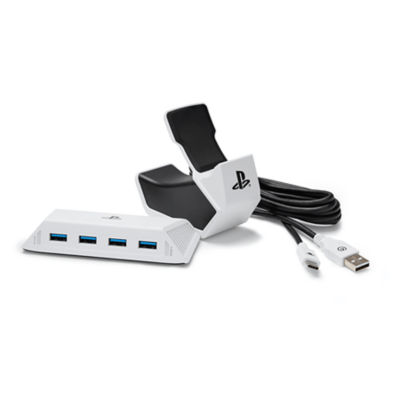
Connect the DualSense to the console with the USB cable, and press the PS button. The controller pairs automatically. Once setup is complete, you can unplug the cable and use it wirelessly. If you plan to buy a second controller or a charging dock, see the controllers category and our best PS5 accessories guide.
Step 5: Follow the On-Screen Setup
Language, region and network
Select your language and region. Connect to your home network using Wi-Fi or an Ethernet cable. A wired connection is more stable for large downloads and online play. After connecting, the console will check for updates and install them. This can take a while, so be patient.
PlayStation account
Sign in with an existing account or create a new one. Use a strong, unique password and turn on two-step verification. Your account region determines which PlayStation Store you see, so choose it carefully, especially if you bought your console abroad. If you are setting up for a child, create a family account and follow our PS5 for families guide.
Step 6: Adjust the Settings That Matter
| Setting | Why change it |
|---|---|
| Video output (4K, 120Hz, VRR, HDR) | Gets the best image your display supports |
| Rest mode | Controls downloads and charging while the console sleeps |
| Storage location | Choose where new games install |
| Parental controls | Limits spending, playtime and content |
| Trophies and privacy | Control who sees your activity |
Step 7: Plan Storage Before You Download
Games are large, and the console’s internal storage fills quickly. Before you download several games, read our PS5 storage upgrade guide and browse the storage category. If you plan to expand, it is easier to fit an SSD before you install a lot of games.
Common First-Day Problems and Fixes
- No picture: check the HDMI input on the display and try a different cable or port.
- Controller will not pair: connect with the USB cable and press the PS button.
- Slow downloads: use a wired connection and pause other devices.
- Update fails: restart the console and try again; confirm your network is stable.
- Fan noise: make sure the vents are clear and the console has room to breathe.
Optimising Picture and Sound After Setup
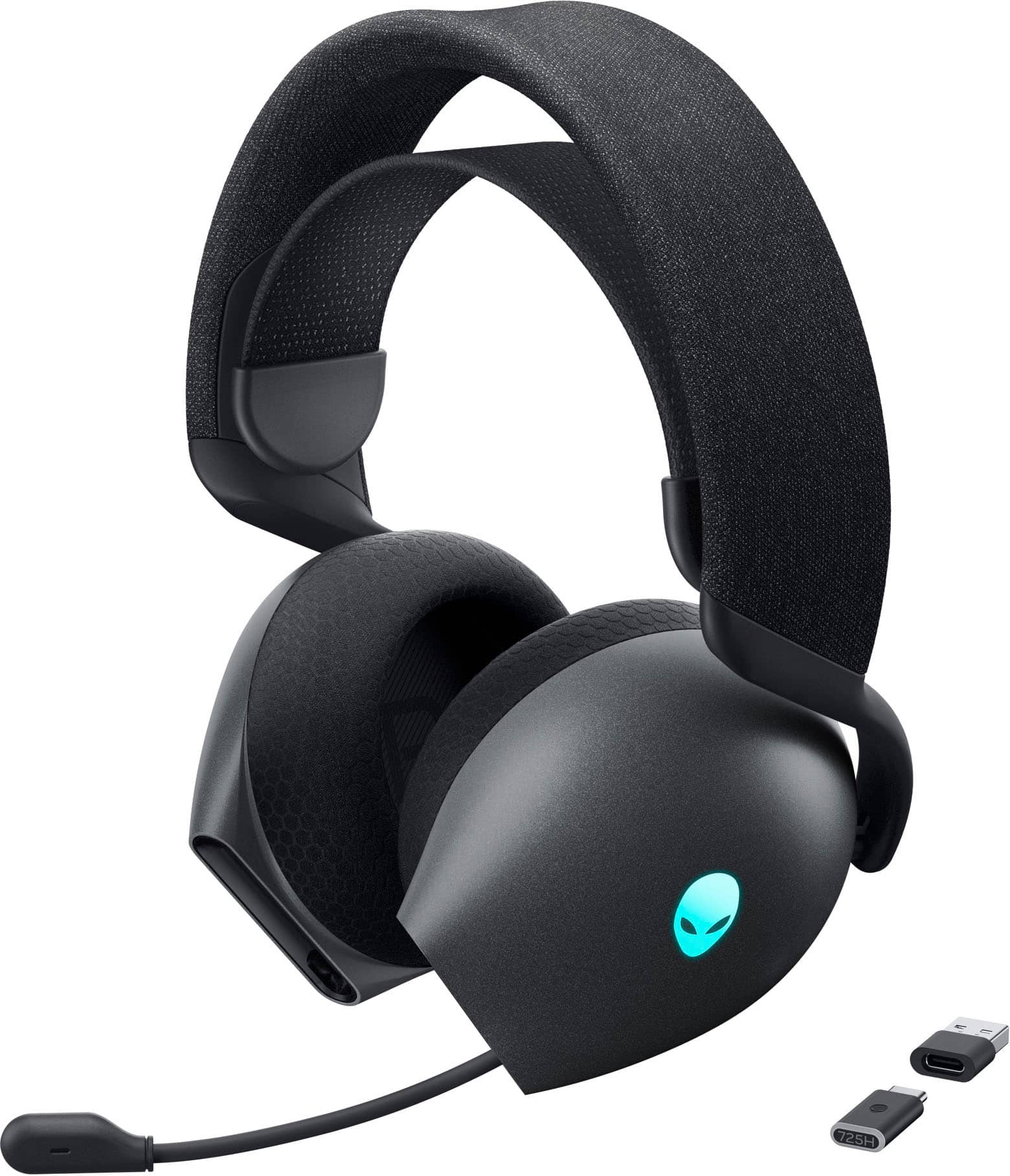
Once the console is running, spend a few minutes tuning your display. Many TVs have a game mode that reduces input lag by switching off heavy image processing; enable it for the HDMI input the console uses. If your display supports HDR, run the PS5’s HDR calibration so highlights and shadows look right, and pick the brightest option only if it looks natural rather than washed out. A quick tour of the sound settings is also worthwhile. If you use a headset, set the output to the headset, adjust the chat balance so voices and game audio are in proportion, and test the microphone with a friend or the built-in test.
It helps to treat the first week as a tuning period. Change one setting at a time, play a favourite game, and notice what improves. Resist the temptation to switch everything on at once, because it is harder to find the cause of a problem if you have changed five things. If you ever get lost, the system settings menu has a reset option for individual categories.
Keeping Your Console Healthy
A little routine care goes a long way. Dust the console and its surroundings, keep liquids away, and avoid moving it while it is running. Install system updates when prompted because they include security and stability improvements. If you leave the console in rest mode, make sure it has airflow, and turn it off completely during storms or long absences. If you have pets, clean around the vents more often than usual.
Back up your saves. If you subscribe to PlayStation Plus, cloud storage is available for many games, and you can also copy saves to a USB drive. This protects your progress if the console ever needs repair or replacement.
Setting Up Online Play and Subscriptions
Online multiplayer on PlayStation requires a paid subscription, and several tiers add game catalogues and extra benefits. Review the current plans before buying, and choose the one that matches how you play. Many players start with a short trial or a monthly plan until they know what they need. Download the free titles offered in your region and check your friends list so you can invite people straight away. When you are ready for more, our guides to the best PS5 games and PS5 vs Xbox Series X help you decide what to play and how to play it.
Setting Up for Players Outside the USA
Buyers in other countries have a few extra things to check. Make sure the power plug matches your outlets, and use an adapter if necessary. Confirm that your PlayStation account region matches where you live so you can use the correct store and payment methods. Some regional services, such as streaming apps and subscription pricing, vary by country. If you bought the console from abroad, keep your invoice in case you need warranty service or to prove the purchase to customs.
BestBuyGadgett’s shipping policy states that orders ship worldwide, and that customs duties, import taxes or fees may apply to international parcels. If you are still planning your order, read our guide to buying a PS5 online safely.
Troubleshooting After Setup
If something feels off after your first day, work through the basics. If games stutter, check that your console is not overheating and that the HDMI cable is firmly connected. If your controller disconnects, charge it and re-pair it with the USB cable. If downloads are slow, restart the router, switch to a wired connection or try downloading at a quieter time of day. If the picture looks washed out, check the HDR settings on both the console and the display. If the console is noisy, make sure the vents are not blocked and the console is not in an enclosed space. Most issues are simple, and the system settings and the PlayStation support pages cover nearly all of them.
When to contact the seller
If the console will not power on, shows hardware errors or arrives damaged, contact the seller with photos, the order number and a short description. Refer to the store’s return policy and keep the packaging. Do this inside the return window. If you ordered from abroad, include your tracking number and the date of delivery.
A First Week Checklist
- Day one: complete setup, update software, create or sign in to your account.
- Day two: set parental controls if needed and adjust video settings.
- Day three: download your first games and test online play.
- Day four: explore the PlayStation Store and your subscription options.
- Day five: plan storage and accessories.
- Day six and seven: play, and note anything you want to improve.
PS5 Settings to Change on Day One
These are the ps5 settings to change before you play seriously: turn on 120Hz and VRR if your display supports them, set rest mode behaviour, choose where games install, and enable two-step verification on your account. If you are setting up a PS5 for first-time buyers in your family, add parental controls and a spending limit too. A few minutes now saves frustration later.
For official information, see PlayStation’s official website, and always verify details with the manufacturer before you buy.
In short: when it comes to how to set up ps5, compare the total cost, read the store policies and confirm every detail before you pay. A careful approach to how to set up ps5 saves money and avoids unpleasant surprises.
More PlayStation extras are in our Sony gaming accessories category, including DualSense controllers, the PlayStation VR2 and the PlayStation Portal. Console hardware is in the PlayStation 5 and PlayStation 5 Pro categories.
Frequently Asked Questions
How long does PS5 setup take?
Basic setup takes a short time, but system updates and game downloads depend on your internet speed.
Do I need a PlayStation account?
You need one for online features, the store and cloud saves. Some offline play works without it.
Can I use my old TV?
Yes, but features such as 4K 120Hz require compatible hardware.
Can I transfer data from a PS4?
The PS5 supports data transfer from a PS4 over a network or cable, following the on-screen instructions.
Where should I buy extras?
Browse our gaming accessories and read our complete home gaming setup guide.
Final Verdict
Take your time with the first hour: good ventilation, the right HDMI port, updated software and a secure account set the tone for years of play. Ready for the next step? Browse the consoles if you are still choosing, or add a headset from the headsets category.