PS5 Storage Upgrade Guide: Best SSDs and How to Expand Your Console
Every PS5 owner eventually hits the same wall: a message saying there is not enough space to install the game you just bought. This PS5 storage upgrade guide explains how to expand PS5 storage properly, how to choose the best SSD for PS5, what an M.2 SSD for PS5 must offer to be compatible, and where an external drive fits in. It is written for ordinary console owners, so there is no jargon you need to decode before taking action.
We link to storage products that exist in our catalogue, but we do not state performance figures that the product listings do not confirm. Always check the manufacturer’s specifications and Sony’s current requirements before you buy any drive, because requirements can be updated.

Table of Contents
PS5 Storage Upgrade: Quick Answer
- Internal M.2 SSD: the best option for running PS5 games. It installs in the console’s expansion bay and behaves like extra internal storage.
- External USB drive: convenient for storing PS5 games and playing PS4 games, but PS5 games generally must be copied back to internal or M.2 storage to play.
- Delete and re-download: free, but slow if your internet is limited.
Why Storage Runs Out So Quickly
Modern games are large and often grow after launch through patches and added content. A console with a few hundred gigabytes of usable space can fit only a handful of big titles. If you play a mix of large shooters, open-world adventures and sports games, you will probably be juggling installs within months. A larger drive turns that juggling into a one-off cost. It also saves repeated downloads, which matters for players with slow or capped connections.
Players who buy a Digital Edition feel this most, since every game is installed from the store. If you are choosing between editions, see our digital versus disc comparison. The PS5 Slim Digital Edition and the Wolverine bundle both benefit from extra storage.

Internal M.2 SSD: What It Must Offer
Sony publishes requirements for internal expansion drives. At the time of writing, the key points are as follows, but verify them on Sony’s support pages before buying, since details can change.
| Requirement | What to look for |
|---|---|
| Interface | PCIe Gen4 x4 NVMe M.2 |
| Speed | A sequential read speed that meets Sony’s recommended minimum |
| Cooling | A heatsink, either built in or added, within the size limits of the bay |
| Size | One of the supported M.2 lengths, with room for the heatsink |
| Capacity | Within the range Sony lists as supported |
Why the heatsink matters
A fast SSD generates heat, and the PS5 bay is small. A heatsink helps keep temperatures under control so the drive does not slow itself down. Many drives are sold with a heatsink designed for the PS5, and others require you to fit your own. Make sure the combined height fits inside the bay, because an oversized heatsink will prevent the cover from closing.
Capacity: how much do you need?
As a rough guide, a 1 TB drive suits casual players, a 2 TB drive suits most enthusiasts, and a 4 TB drive suits players who keep a large library installed. Remember that you pay for capacity, so compare the cost per terabyte rather than only the headline price.
Drives in the BestBuyGadgett Catalogue
Our storage category lists the drives currently available. Two internal NVMe examples are the MSI M461 2TB PCIe 4.0 NVMe M.2 SSD and the MSI Spatium M480 Pro 4TB PCIe 4.0 NVMe SSD. Both are listed as PCIe 4.0 NVMe drives, which matches the interface type the PS5 expects, but you should still confirm speed and heatsink details against Sony’s guidance before purchase. Availability and pricing can change, and compatibility is the buyer’s responsibility to verify.
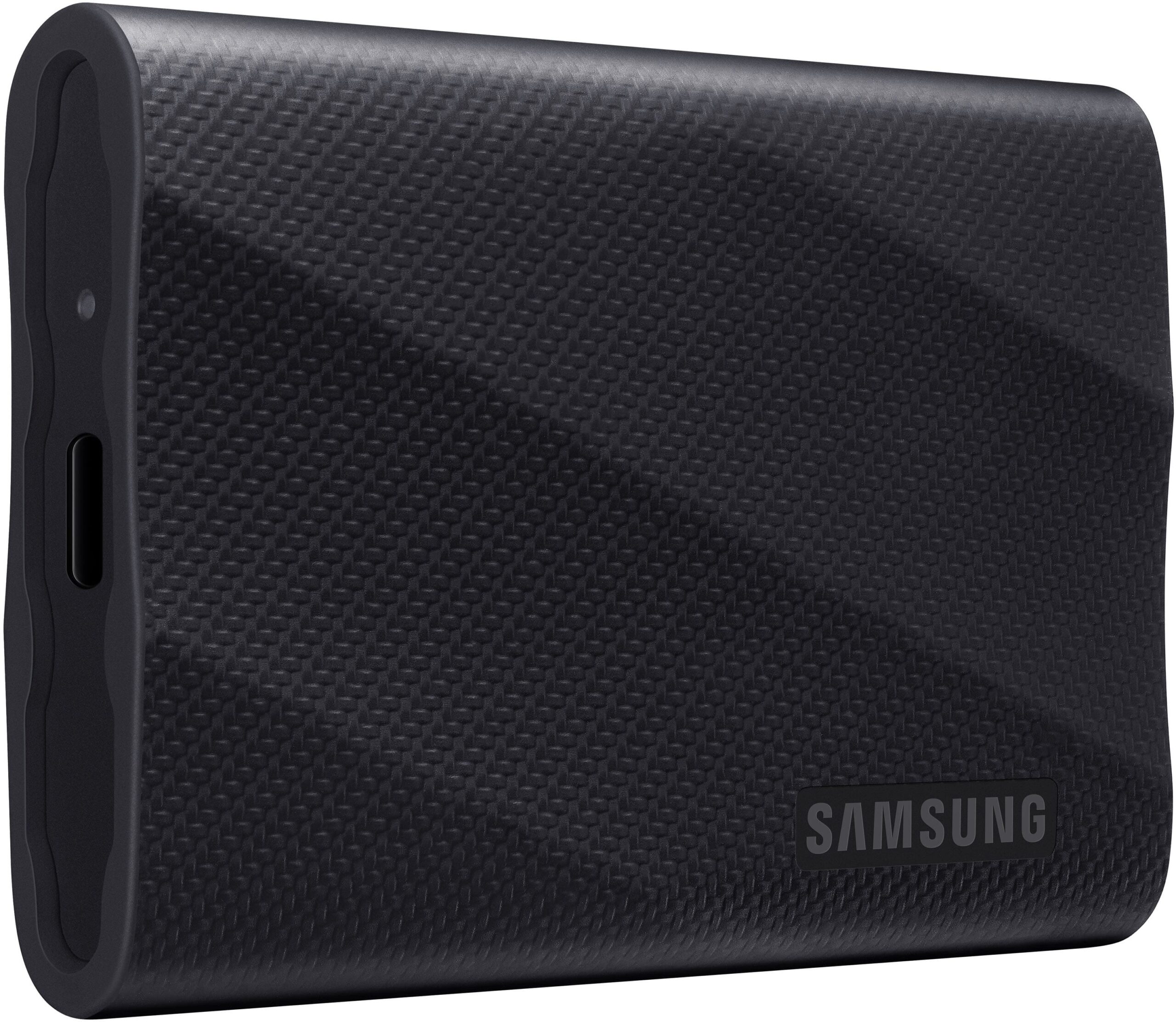
For external storage, the Samsung T9 portable SSD is a USB drive that can hold PS5 games you are not currently playing. It is not a substitute for an internal M.2 drive for running PS5 titles, but it is convenient for archiving.
External Drives: What They Can and Cannot Do
A USB external drive is a good companion to your internal storage. You can move PS5 games onto it to free up space, and later copy them back when you want to play. PS4 games can generally be played directly from a supported external drive. The advantage is cost and convenience: no opening the console, and the drive can be moved between a console and a PC. The drawback is that PS5 games usually cannot run from it, so you will wait for transfers.
| Internal M.2 SSD | External USB drive | |
|---|---|---|
| Play PS5 games directly | Yes | Generally no |
| Play PS4 games | Yes | Yes |
| Installation effort | Open the cover and fit the drive | Plug in |
| Portability | Fixed | Portable |
| Best for | Main library | Archive and PS4 titles |
How to Install an M.2 SSD
- Switch off the console completely and unplug the power cable.
- Place the console on a stable surface and remove the side cover according to the instructions for your model.
- Remove the screw and the expansion bay cover.
- Insert the SSD, with its heatsink fitted, into the slot and secure it with the screw or spacer.
- Replace the cover, reconnect power and turn on the console.
- Follow the on-screen prompts to format the drive.
Take care with static electricity, avoid touching the contacts, and consult Sony’s official instructions for your exact console. If you are not comfortable with the process, ask someone experienced. The Slim and original models have differently designed covers, so do not assume the steps are identical.
Common Mistakes
- Buying a drive without a heatsink and not fitting one.
- Choosing a drive that is too slow for the console’s requirements.
- Ignoring the height of a third-party heatsink.
- Expecting an external drive to run PS5 games.
- Buying the cheapest unknown brand without any warranty information.
Regional and Shipping Notes
Storage is small and light, so international shipping is usually straightforward, but duties and taxes may apply. The store’s shipping policy says orders ship worldwide, and orders over $250 qualify for free standard shipping. Combining a drive with another purchase, such as a controller from the controllers category, can help you reach that threshold. Check the return policy before buying a drive you plan to install, because opened electronics are often subject to specific rules.
Related Reading
Planning your whole setup? See best PS5 accessories, how to set up your PS5 and the complete home gaming setup guide. If you also use a PC for gaming, the same NVMe drive knowledge applies to our gaming PCs.
How to Choose Between Drives: A Buying Framework
With so many drives on the market, it helps to compare them using the same short list of questions. First, does it meet Sony’s published interface and speed requirements? Spec sheets usually list sequential read speeds, and a figure well above the minimum gives you headroom. Second, how is it cooled? A drive with an integrated heatsink is the simplest choice, because you know it was designed to fit. Third, what is the warranty? Storage is a long-term purchase, and a clear multi-year warranty from the manufacturer is a good sign. Fourth, what is the cost per terabyte? A larger drive often costs less per terabyte, so buying one bigger drive can beat buying two small ones over time.
Finally, consider endurance. Drives are rated for a total amount of data that can be written over their lifetime. Gaming is read-heavy, so this rarely limits a console owner, but a reputable brand with published endurance ratings is better than an anonymous bargain. If your drive will also be used in a PC later, as in our gaming PCs category, a well-known model keeps its resale value.
Capacity planning example
Imagine you keep six large games installed, each taking a substantial share of space, along with a couple of smaller titles. Add room for patches and for captured video clips. Most players find that a fraction of their internal storage disappears to the system software, leaving less than the headline capacity. That is why planning for a drive at least twice the size of your current library is sensible. It leaves room for new releases without constant deleting.
Using an External Drive Wisely
A PS5 external drive works best as a library shelf. Keep your current favourites on fast internal storage, move finished games to the external drive, and copy them back when you want to replay. Because transfers over USB are much faster than re-downloading a game over a typical internet connection, this approach saves time and data. It is particularly helpful for players on capped connections or in regions where bandwidth is limited.
When you pick an external drive, choose a USB 3 or faster model and use a port on the console that supports the required speed. Keep the drive in a stable position and avoid unplugging it while the console is on. Eject it through the system menu to prevent corruption. If you intend to use the same drive for PC backups, format choices may differ, so read the console’s instructions before formatting anything.
Troubleshooting Storage Problems
- The console does not recognise the SSD: reseat the drive, check it is a supported size and confirm it is seated under the screw or spacer correctly.
- The console warns that the drive is too slow: choose a model that meets the speed requirement.
- Games load slowly: check the drive temperature and heatsink fit, and make sure the console has adequate ventilation.
- Games are not appearing: make sure you installed them to the right location in the storage settings.
If problems persist, contact the drive maker or the seller. You can reach our team through the contact page, and the FAQ may answer common order questions.
For official information, see PlayStation’s official website, and always verify details with the manufacturer before you buy.
In short: when it comes to ps5 storage upgrade, compare the total cost, read the store policies and confirm every detail before you pay. A careful approach to ps5 storage upgrade saves money and avoids unpleasant surprises.
Whichever route you take, treat your PS5 storage upgrade as a one-off investment: choose a drive that meets Sony’s requirements, fit the heatsink properly and keep spare capacity for patches. A good PS5 storage upgrade means fewer deletions, fewer re-downloads and a console that is ready when a new release arrives. If you are unsure, ask the seller to confirm compatibility before you order your PS5 storage upgrade.
More PlayStation extras are in our Sony gaming accessories category, including DualSense controllers, the PlayStation VR2 and the PlayStation Portal. Console hardware is in the PlayStation 5 and PlayStation 5 Pro categories.
Frequently Asked Questions
Can I use any M.2 SSD in a PS5?
No. It must be a compatible PCIe Gen4 NVMe drive meeting Sony’s speed, size and cooling requirements.
Do I need a heatsink?
Yes, a heatsink is required by Sony’s guidance. Many drives include one.
Can I play PS5 games from an external drive?
Generally no. External drives are for storing PS5 games and playing PS4 games.
How big a drive should I buy?
For most players, 1 TB to 2 TB is a comfortable range. Heavy collectors may prefer more.
Will an SSD void my console warranty?
Fitting a compatible SSD in the dedicated bay is the officially supported upgrade path, but check the warranty terms that apply in your country.
Final Verdict
For most owners, an internal M.2 SSD is the best way to expand storage, with an external USB drive as a helpful extra for archiving and PS4 games. Verify compatibility, fit a heatsink, and choose a capacity that matches your library. Browse the storage category to see what is currently listed, and visit the consoles section if you are still choosing your PlayStation.