Best Gaming Monitors for PS5: 4K 120Hz and OLED Options for the USA and Europe
The Best gaming monitors for PS5 is not always the one with the biggest numbers on the box. The PlayStation 5 can output 4K at up to 120 frames per second in supported games, but only if the display, the HDMI cable and the console’s settings all agree. This guide explains what to look for in PS5 monitors, how 4K 120Hz monitors differ from OLED gaming monitors, and which models in the BestBuyGadgett catalogue are worth reading about, for buyers in the USA, Europe and beyond.
We link to real products and quote only what their listing titles state. Always confirm HDMI version, refresh rate over HDMI and warranty on the product page, because specifications can vary between regions and revisions. Prices and stock change.
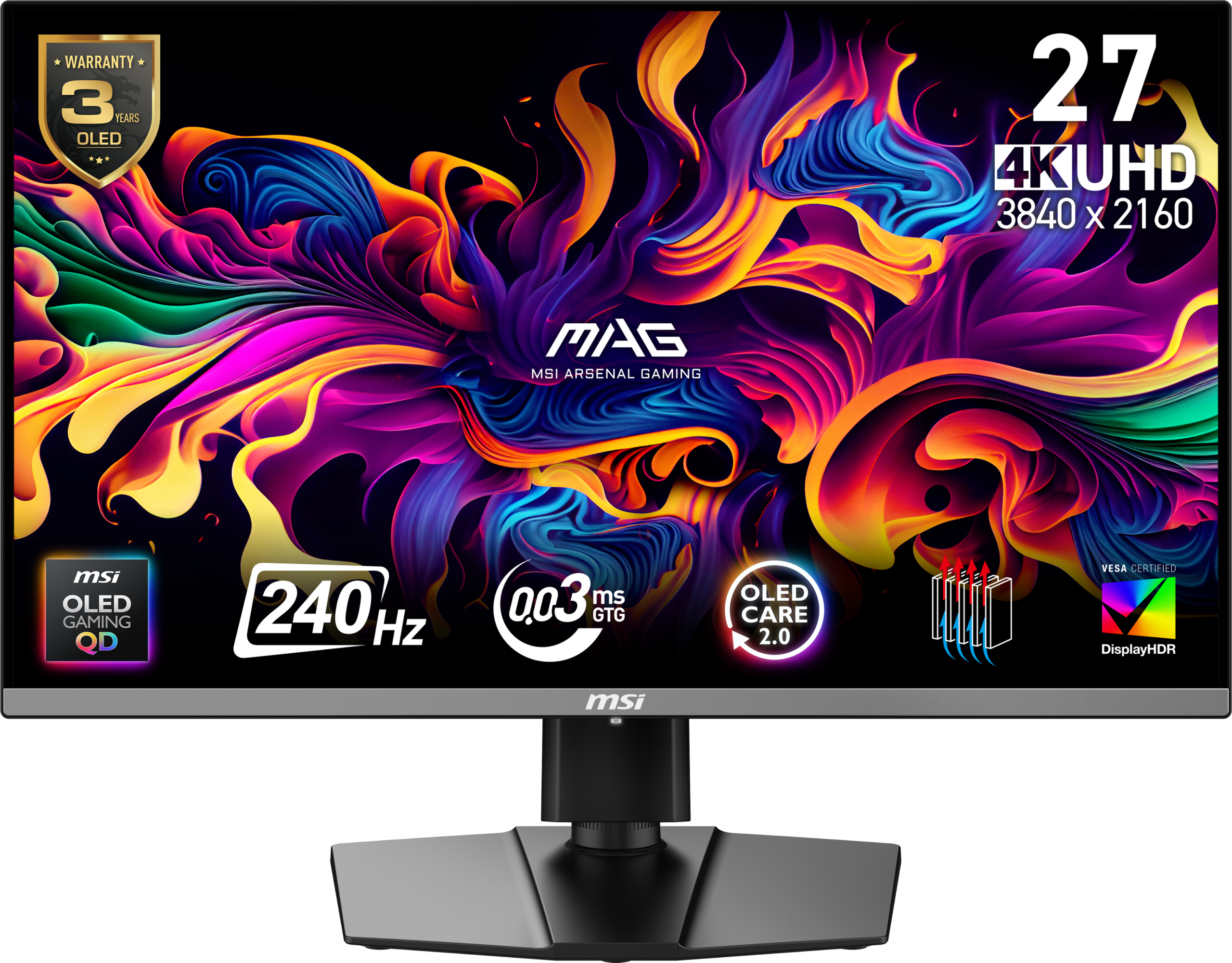
Table of Contents
Best gaming monitors for PS5: Quick Answer
- HDMI 2.1 so the PS5 can send 4K at 120Hz. Without it, you are limited to lower refresh rates at 4K.
- A 16:9 panel. The PS5 does not natively support ultrawide resolutions, so ultrawide monitors will show black bars.
- Variable refresh rate (VRR) support to reduce tearing.
- HDR10 support for brighter highlights, with realistic expectations on cheaper panels.
- Fast response and low input lag, which OLED panels are known for.
4K 120Hz: What It Means for the PS5
A 4K display has roughly four times the pixels of a 1080p screen. At 120Hz it refreshes 120 times per second, which makes motion smoother and input feel more immediate. Not every PS5 game offers a 4K 120Hz mode, and many demanding games choose between higher resolution or higher frame rates. Even so, 120Hz is valuable in competitive and fast-paced titles that support it. For a deeper comparison of console models and their performance, read our PS5 Pro vs Slim vs Digital guide.
Check the HDMI port, not just the spec sheet
Many monitors advertise a high refresh rate through DisplayPort but offer slower HDMI ports. The PS5 only uses HDMI, so what matters is the HDMI version and the refresh rate it supports at 4K. Look for the manufacturer’s statement of “HDMI 2.1” or “4K 120Hz over HDMI”. If the listing does not say, ask the seller or check the manufacturer’s page before buying.
OLED vs IPS and Other Panel Types
| Panel | Strengths | Weaknesses |
|---|---|---|
| OLED / QD-OLED | Deep blacks, excellent contrast, very fast response | Higher cost, burn-in precautions needed |
| IPS | Good colour and viewing angles | Lower contrast, backlight bleed |
| VA | Strong contrast for the price | Slower response in some models |
For a comparison of the two leading OLED variants, see our guide to QD-OLED vs WOLED, and for how fast a screen needs to be, read monitor refresh rate: 144Hz, 240Hz or 360Hz.
Monitors in Our Catalogue Worth Considering
These listings are in our gaming monitors category. Confirm HDMI 2.1 and PS5 compatibility on each product page before ordering.
4K QD-OLED options
- MSI MAG 272UP 27-inch QD-OLED 4K 240Hz: a compact 27-inch panel for desk setups.
- MSI MAG 321CUP 32-inch curved QD-OLED 4K 165Hz: a larger curved option.
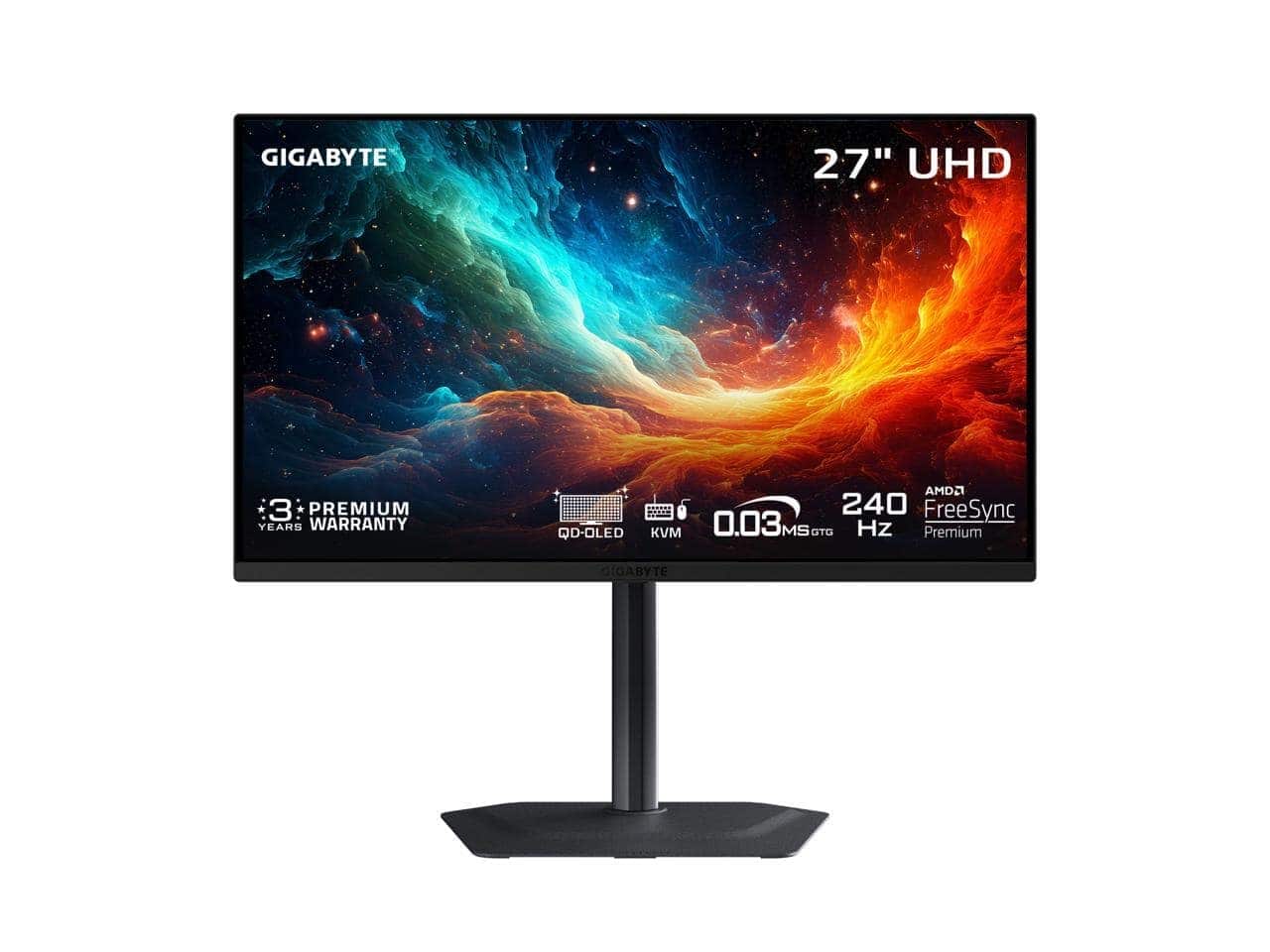
- GIGABYTE MO27U2 27-inch QD-OLED 4K 240Hz: another 27-inch 4K OLED choice.
Other panels
- GIGABYTE G27U 27-inch 4K IPS: an IPS option for those who prefer lower burn-in risk.
- Samsung Odyssey OLED G8 34-inch curved WQHD 240Hz: a fast OLED, though its ultrawide shape means black bars on a PS5.
- Samsung Odyssey G50D 32-inch QHD IPS 180Hz: a QHD option, useful if your console is set to output 1440p.
The ultrawide models, such as the Odyssey OLED G9 49-inch, are stunning for PC but are not a natural fit for PS5 because the console outputs standard 16:9 images.
Console Settings That Matter
- Use the HDMI cable included with the console or a certified Ultra High Speed cable.
- Plug into the monitor’s HDMI 2.1 port, which may be labelled.
- Enable 120Hz output and VRR in the PS5 video settings, if your monitor supports them.
- Turn on HDR and run the calibration screens.
- Switch the monitor to its game or low-latency mode.

OLED Care: Burn-In and Longevity
OLED panels can show permanent image retention if the same bright element is displayed for extended periods. Modern monitors include pixel-shifting and refresh cycles, but good habits help: vary what you display, lower brightness for static HUDs, and let the monitor run its maintenance cycles. Check the manufacturer’s warranty to see whether burn-in is covered.
Regional Notes for the USA and Europe
Monitors are larger and more fragile than most accessories, so check packaging and delivery terms. The shipping policy states that orders ship worldwide and that orders over $250 qualify for free standard shipping, with duties or taxes possibly applying to international parcels. Review the return policy before purchase. In Europe, check plug type and the availability of a VAT invoice.
Screen Size and Viewing Distance
Size is a matter of where you sit. At a typical desk distance of around an arm’s length, a 27-inch monitor at 4K looks sharp, and a 32-inch model fills more of your vision for a more cinematic feel. Beyond about 32 inches on a desk, you may have to move your head to see the edges of the screen, which is tiring in competitive games. If you plan to sit on a sofa several metres away, a television is usually a better choice than a monitor, because the extra size matters more at distance. Think of the room first, the screen second.
Resolution and size also interact. A 4K panel on a small monitor gives very high pixel density, which makes text and interface elements crisp, but the PS5 still renders many games at less than native 4K and scales the image. A 1440p monitor can be a sensible compromise if you want high refresh rates without asking the console to push as many pixels. The PS5 supports 1440p output in its video settings, but you should confirm this on the console and with the monitor.
Features Worth Paying For, and Features to Ignore
Some features genuinely improve console gaming. Variable refresh rate smooths out frame rate dips. A low-latency mode reduces delay between your input and what you see. A built-in stand with height adjustment makes the monitor comfortable to use. Good speakers are rarely a reason to buy, because most players use a headset. RGB lighting, ultra-high peak brightness claims and extreme refresh rates beyond what the console can output add cost without improving your PS5 experience.
A PS5 outputs a maximum of 120 frames per second, so a 240Hz monitor does not make a console run faster, although it may offer other benefits if you also connect a PC. If you plan to use one screen for both, a high-refresh OLED can be a good long-term investment, as covered in our gaming laptop guide and the gaming PCs category.
Monitor or TV: Which Should You Pick?
Many PS5 owners already have a television, and modern OLED and LED TVs have excellent gaming modes. Our catalogue includes models such as the LG 55-inch C6 OLED and the Samsung 65-inch S90F OLED, which are strong choices for living-room play. A TV gives you a large picture, built-in streaming apps and room for friends on the sofa. A monitor gives you a smaller, sharper desk setup, often with faster response and better ergonomics for single-player or competitive sessions.
Consider how you play. If you game alone at a desk, a monitor is usually more efficient and cheaper per inch of quality. If you game with others or want a cinematic experience, a TV wins. Plenty of households have both: a TV in the living room and a monitor in a bedroom or office. In that case, the same console can move between them, or you can add a second console or a handheld for the other room.
A short buying checklist
- Confirm HDMI 2.1 and 4K 120Hz over HDMI.
- Check VRR and HDR10 support.
- Pick a size that suits your viewing distance.
- Read the warranty and the return policy.
- Compare the delivered price, including any duties.
Cables, Adapters and Common Setup Problems
Most “my PS5 will not do 120Hz” problems come down to cables and ports. An old HDMI cable may carry 4K at 60Hz but not 120Hz. Use the cable supplied with the console or one certified as Ultra High Speed. Plug into the correct HDMI port on the monitor, because only one port may support the full bandwidth. If the screen flickers or goes black, try a different cable first, then check the console’s video output settings. Adapters from DisplayPort or USB-C to HDMI rarely carry the full PS5 signal, so avoid them if you want 4K 120Hz.
If you pair the monitor with a headset, plug it into the controller or use a USB dongle, because most monitors do not pass through audio cleanly. Our headsets and accessories guide help you finish the setup.
Gaming Monitor Mistakes PS5 Owners Make
Buying on refresh rate alone is the most common mistake: a 240Hz monitor does nothing extra for a PS5 that outputs at most 120Hz. Another is trusting a monitor’s USB-C or DisplayPort specifications while forgetting that the PS5 uses HDMI. A third is choosing an ultrawide because it looks impressive, only to find the console shows black bars. A fourth is ignoring the stand: a monitor that cannot adjust height or tilt can cause neck strain. Finally, buyers sometimes forget about brightness and room lighting, which affect how good HDR looks. Avoid these mistakes by writing a short list of requirements first and checking each monitor against it, rather than buying the biggest number on the box.
Read the manufacturer’s page and the retailer’s listing carefully, and ask a question through the contact page if the HDMI details are not clear. A short email before purchase is far easier than a return afterwards.
Quick Recap
Choose HDMI 2.1, a 16:9 panel, VRR and a size that suits your desk. Verify specifications on the product page and use the right cable.
Choosing an HDMI 2.1 Monitor
A true HDMI 2.1 monitor is the safest way to get 4K at 120Hz from your PS5. Look for the HDMI version in the specifications, not only in the marketing text, and check whether the 4K 120Hz mode works over HDMI as well as over DisplayPort. If the listing is unclear, ask before you buy.
For official information, see the HDMI Licensing Administrator, and always verify details with the manufacturer before you buy.
In short: when it comes to best gaming monitors for ps5, compare the total cost, read the store policies and confirm every detail before you pay. A careful approach to best gaming monitors for ps5 saves money and avoids unpleasant surprises.
More PlayStation extras are in our Sony gaming accessories category, including DualSense controllers, the PlayStation VR2 and the PlayStation Portal. Console hardware is in the PlayStation 5 and PlayStation 5 Pro categories.
Frequently Asked Questions
Can a PS5 run 4K 120Hz?
Yes, in supported games and on a display with HDMI 2.1 and a suitable cable.
Does the PS5 support ultrawide monitors?
Not natively. Expect black bars on an ultrawide.
Is OLED worth it for a PS5?
If you value contrast and fast response, yes, with attention to burn-in precautions.
Do I need a monitor or a TV?
A monitor suits desks and competitive play, a TV suits living rooms. Both work with a PS5.
Where do I learn more about OLED options?
Read our best 4K OLED monitors for PS5 and PC.
Final Verdict
For most PS5 owners, a 27-inch 4K monitor with real HDMI 2.1 and VRR is the sweet spot. Browse the gaming monitors and read our complete home gaming setup guide to pair your screen with the right headset and storage.